How to use Positron
Positron Overview
- Positron docs: positron.posit.co
- Overview of Positron’s features: posit.co/products/ide/positron
Check out the video below for a brief overview of Positron.
This video demonstrates the desktop version of Positron, which may look slightly different from the version of Positron you will be using via Posit Workbench on dev.academy.posit.team. However, the core features and functionalities are the same.
For a more in-depth walk-through of Positron, see this accompanying blog post.
Using Quarto in Positron
For a step-by-step guide on using Quarto in Positron, refer to the Quarto documentation here.
For a deeper dive, check out the Quarto + Positron slides from the “Getting Started with Positron” workshop.
Positron Assistant
Positron Assistant is an AI-powered tool that provides LLM integration with Positron, both for chat and inline code completions. Positron Assistant has been enabled in the version of Positron you will be using on dev.academy.posit.team.
To try out Positron Assistant, you must first configure a language model provider. We have provided model access for you via AWS Bedrock.
Due to limited capacity in the AWS Bedrock instance configured in this site, you may experience token rate limits or throttling errors if too many users are accessing the service at once. If you encounter these issues, please try again later.
Follow these steps to enable AWS Bedrock:
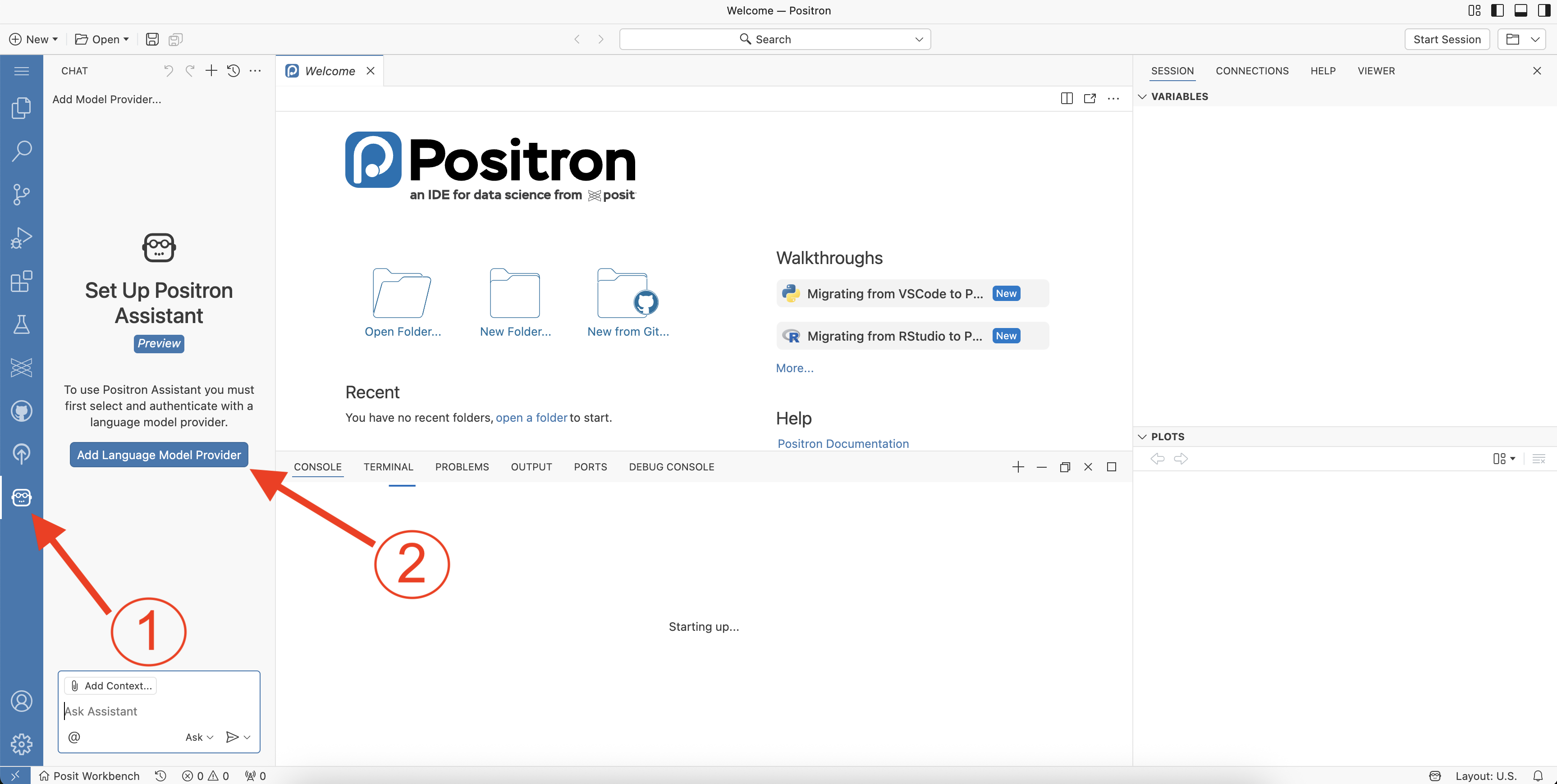
Click on the robot icon at the bottom of the sidebar to open Positron Assistant.
- Then click Add Language Model Provider. This will open a dialog box where you can configure your language model provider.
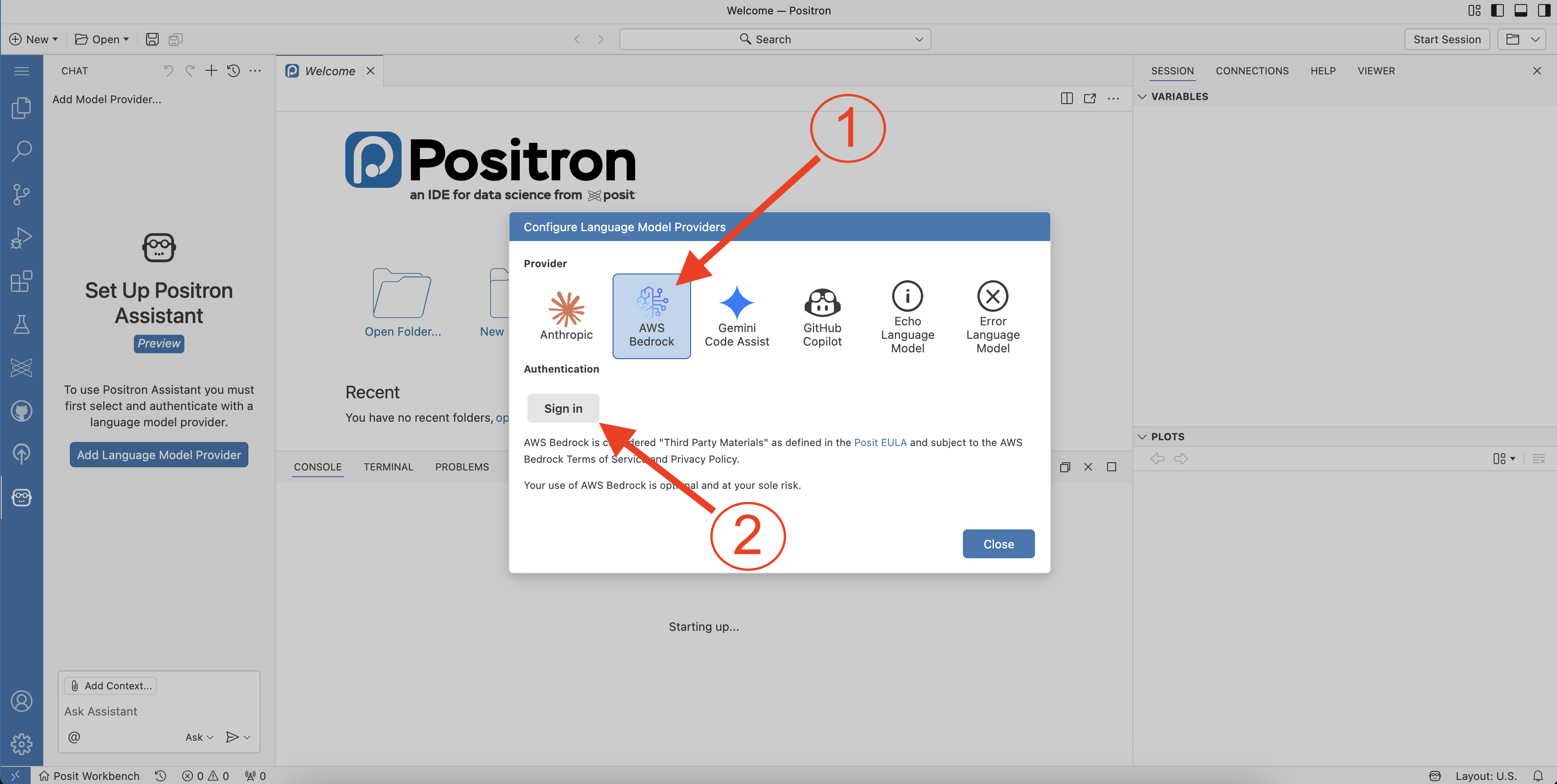
Select AWS Bedrock from the provider options.
- Then click Sign in. You will not need to enter any credentials, as we have already configured the necessary access for you.
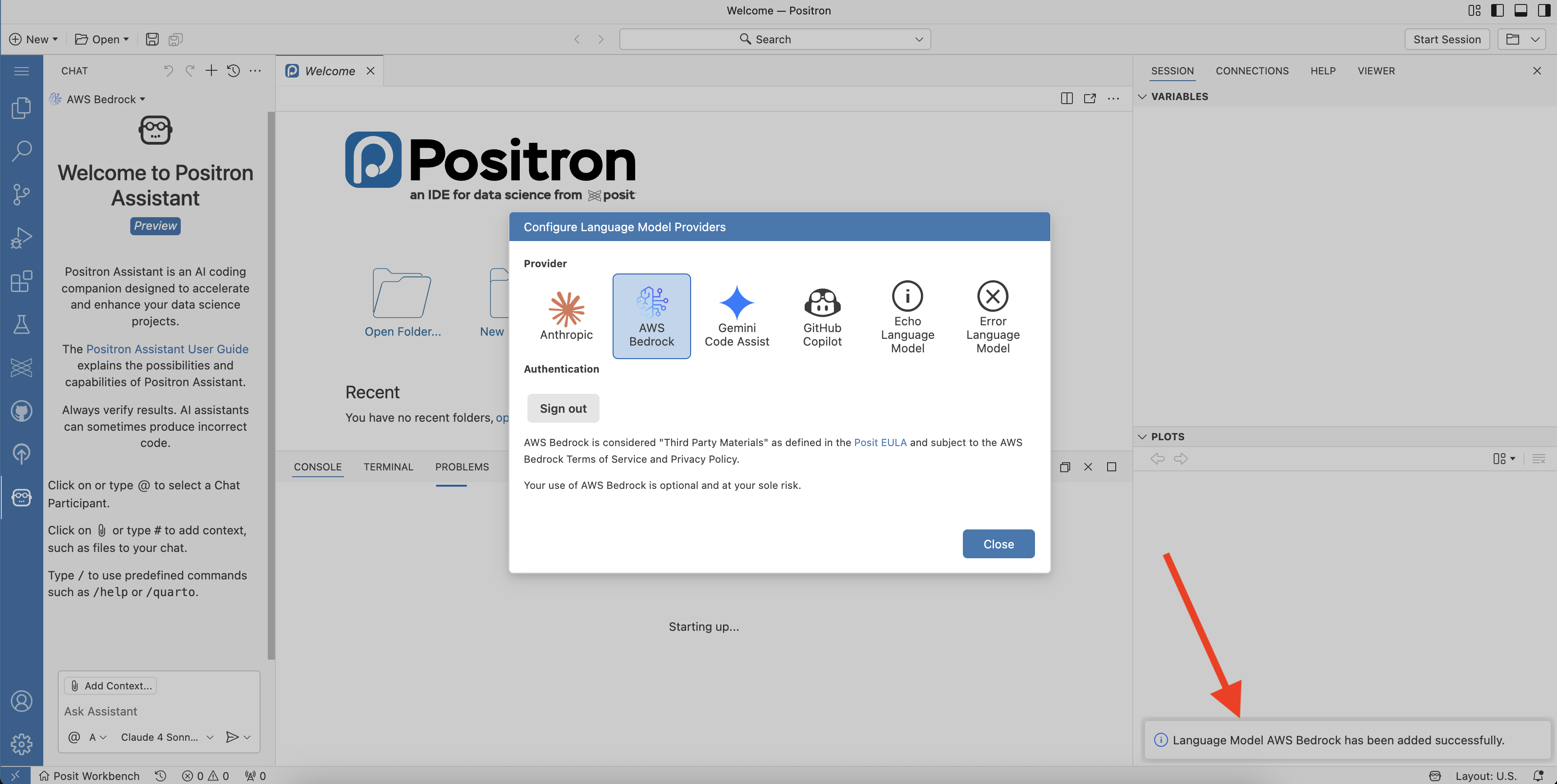
Done!
- You should then see a message in the bottom right corner of your IDE that says “Language Model AWS Bedrock has been added successfully.”
- Click Close to exit the dialog box.
- You’re now ready to try out Positron Assistant.
For more information on how to use Positron Assistant, see the Positron Assistant documentation.