Academy Basics
Navigating the Academy learning platform
The Academy platform
Each course is hosted on an Academy campsite, where you will find tutorials, your course project, and other resources.
When you log into your Academy campsite, you will see a homepage that looks something like this:
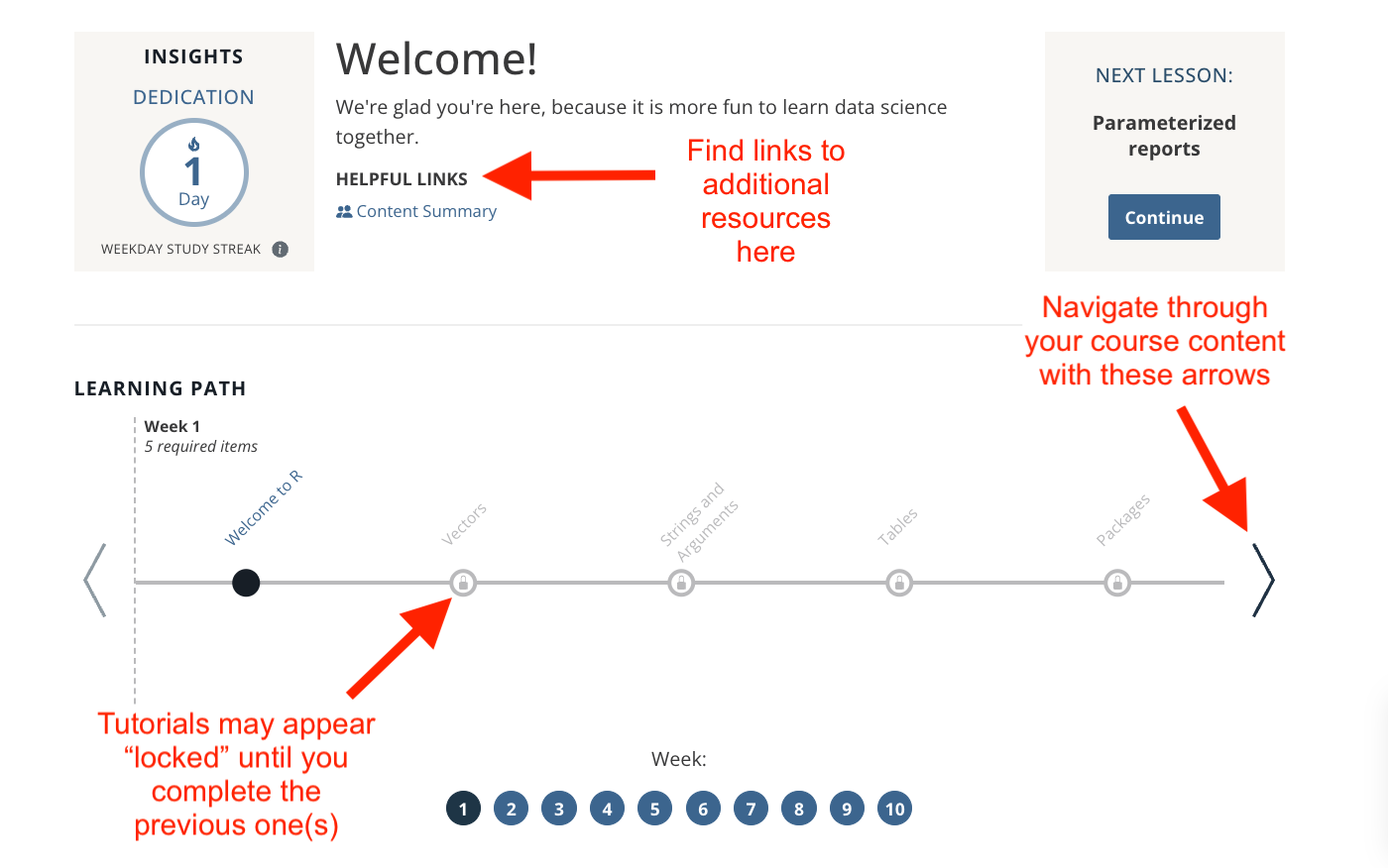
The Learning Path contains all of the materials for your course. Scroll through this syllabus horizontally to preview upcoming content or navigate between different weeks. (To jump across content, click on the numbers under “Weeks”.)
Find additional resources in the Helpful Links section at the top of your homepage.
Scroll down to section labeled Your Group to see your fellow learners.
Tutorials
Lessons are organized as either fullscreen or sidebar tutorials; tutorial navigation will be slightly different depending on the format.
Fullscreen tutorials
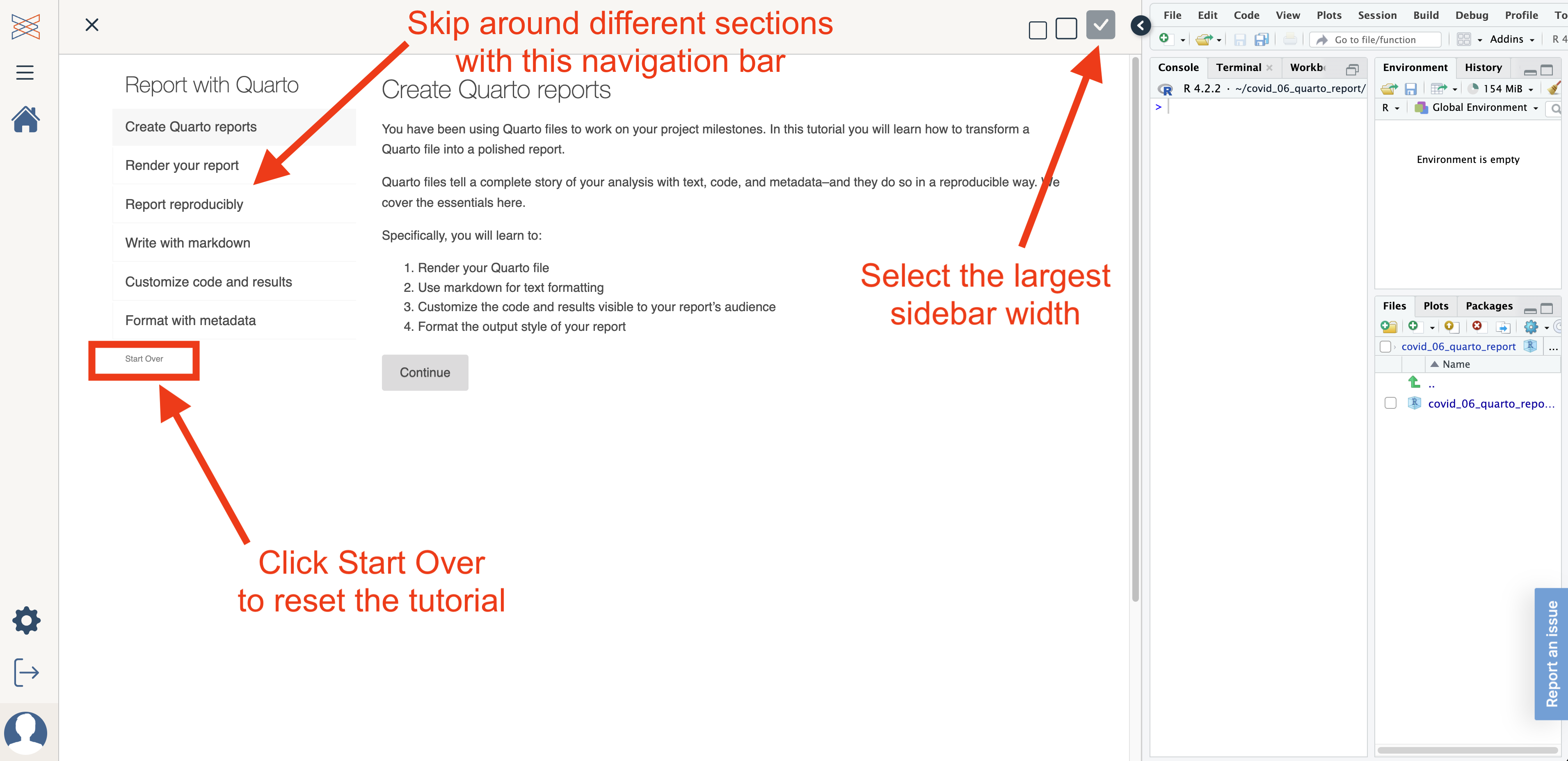
To navigate a fullscreen tutorial use the topic outline on the left. You can collapse this navigation bar with the left-pointing arrow button.
To restart a fullscreen tutorial and reset all of your exercise progress, click
Restartin the lower right corner of the navigation bar.To return home to the main Academy page, click the home button on the left.

Sidebar tutorials
Sidebar tutorials run alongside the RStudio IDE and often require writing code inside of a Quarto document as you go.
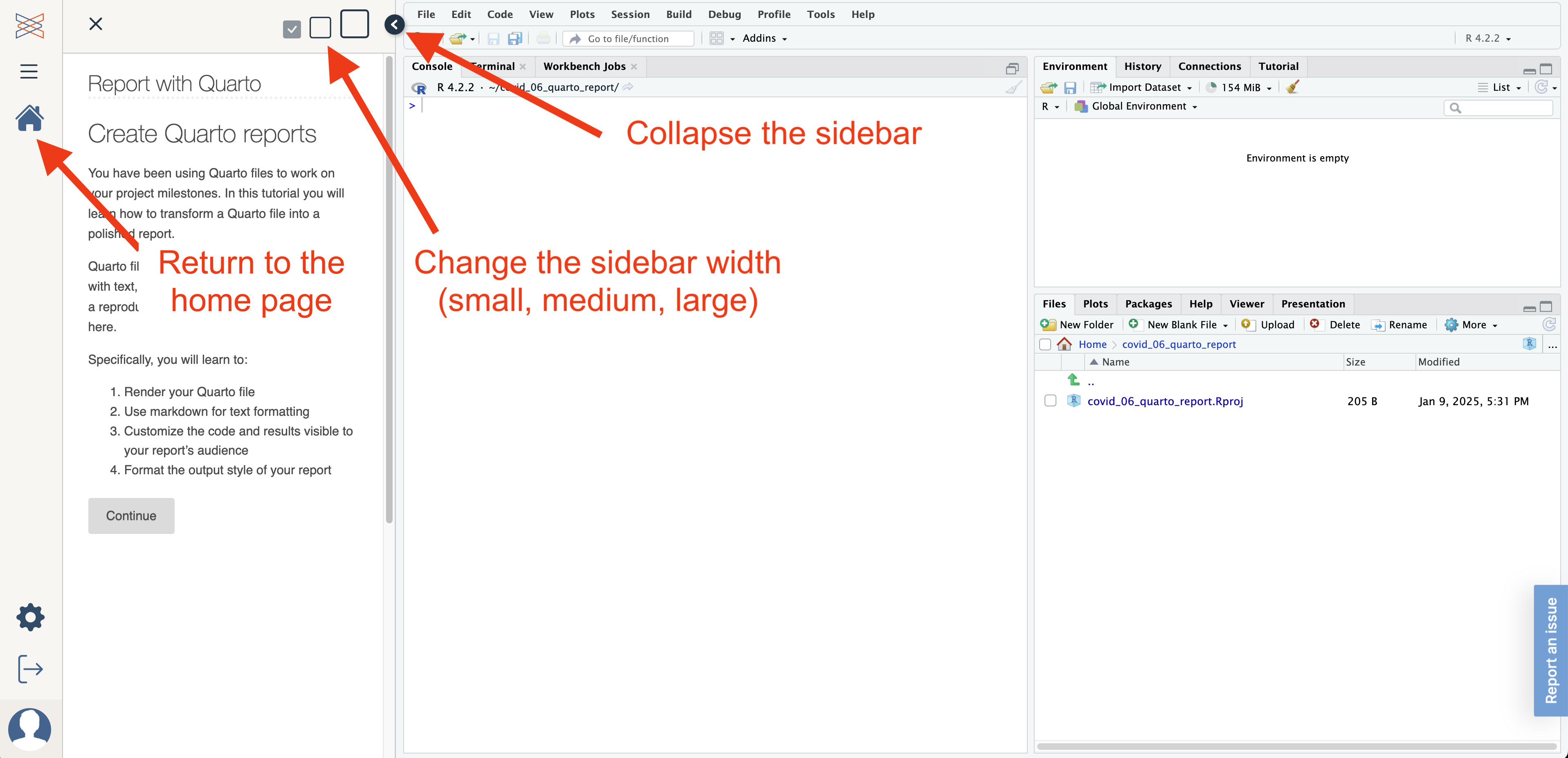
- To change the width of the sidebar use the box icons pictured below. Or you can collapse the sidebar entirely to give yourself more space to work in the IDE.
- To restart a sidebar tutorial or navigate through different sections, expand the sidebar to the largest size and use the exposed left-hand navigation bar to
start overor change sections.
Code exercises
Tutorials contain interactive exercises delivered inside code boxes where you can write and execute code and get feedback on your code from the Academy code checker.
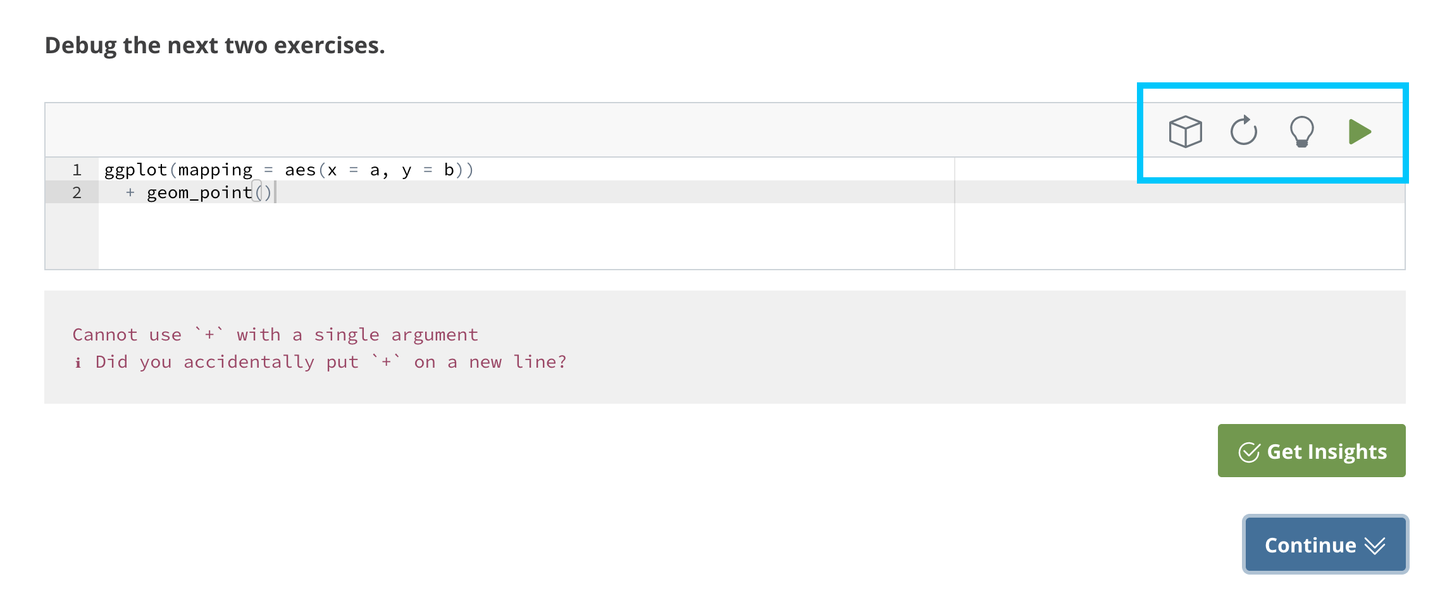
These code boxes contain buttons to run your code, see hints, and/or get feedback. See below for an explanation of each button. Note that you may not see all of these buttons for every exercise.
Show the loaded packages for this exercise
Reset your code box to the initial state
Show hints for this exercise
Run code without feedback
 Run code and receive feedback from Academy grading code
Projects
Academy projects are broken down into weekly pieces called milestones. You can find each week’s project milestone to the right of the tutorials in your Learning Path.
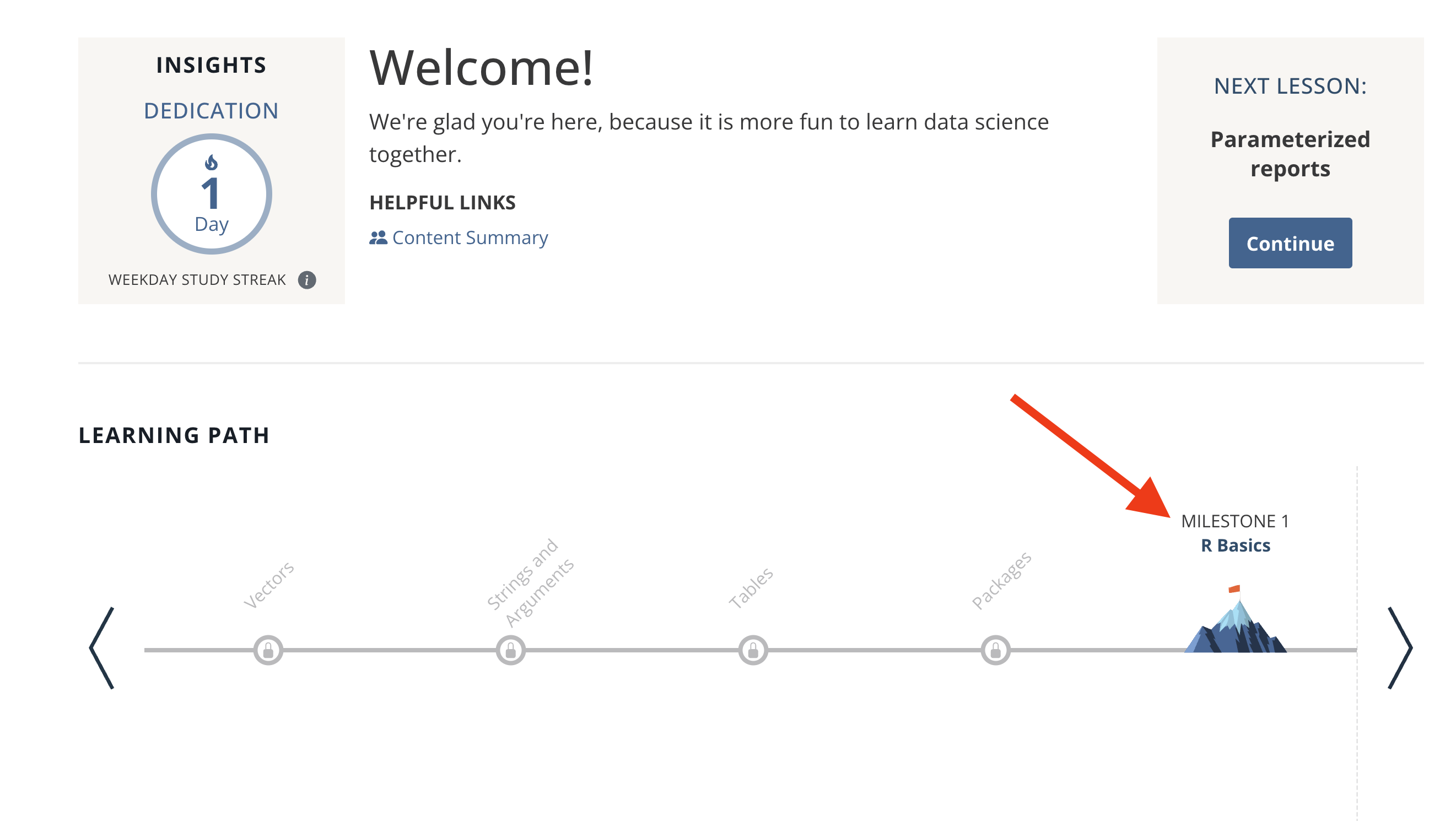
After opening a milestone, you will see instructions on the left sidebar and an RStudio IDE screen on the right. A Quarto document will open automatically in your IDE, where you will complete the milestone.
- To change the width of the sidebar use the box icons pictured below. You can also collapse the sidebar entirely to give yourself more space to work in the IDE.
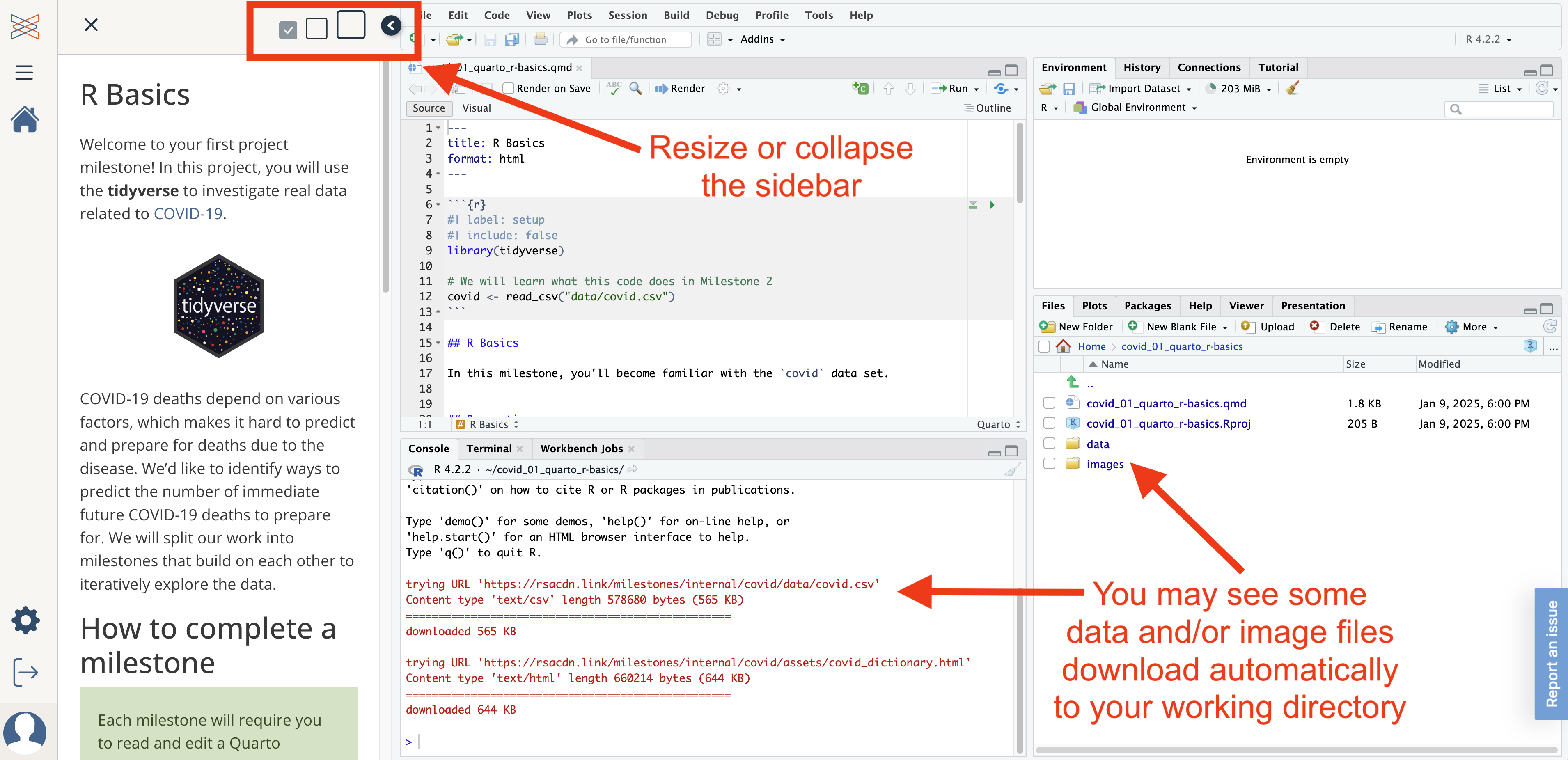
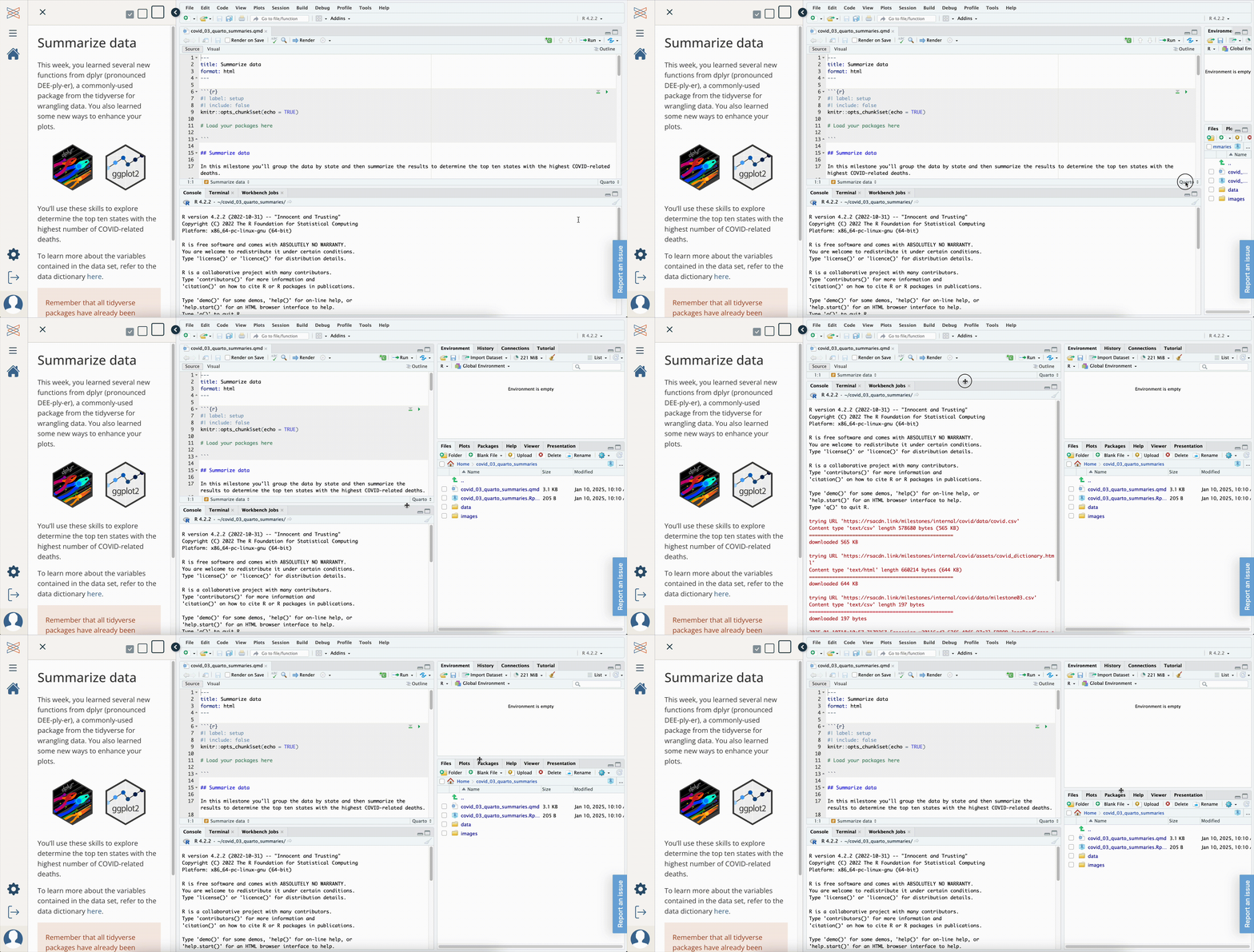
- To resize your IDE panes, click and drag the bar(s) separating the four panes. Notice that you may need to drag the bar on the right side of the screen to see the full width of the IDE, revealing the Environment and Files panes.
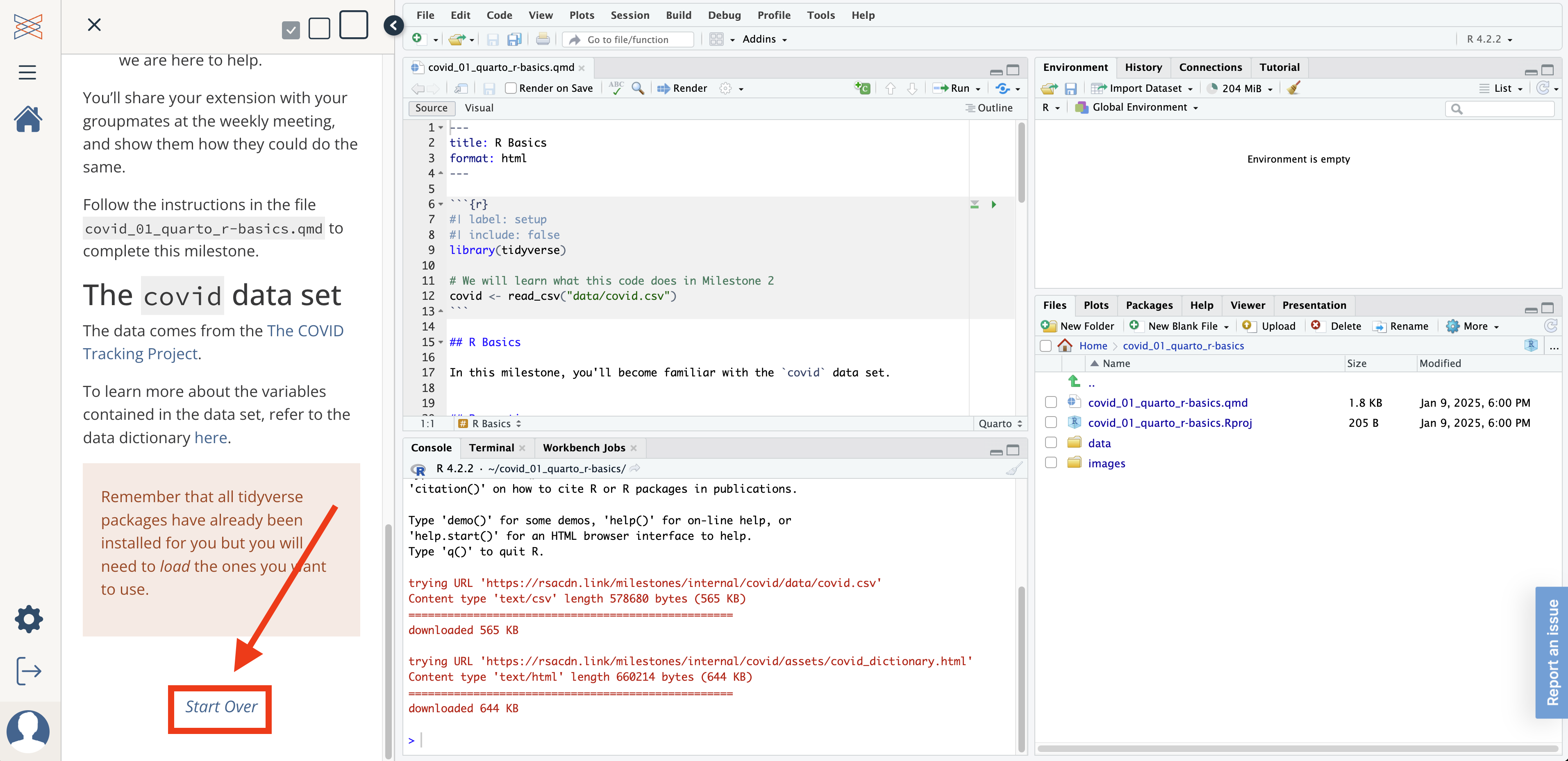
- To restart a milestone, scroll down to the bottom of the sidebar and click
Start Over. This will open a new Quarto document; your previous work will be saved to a backup file in your working directory.