Troubleshooting common issues
If you’re having technical trouble, this may help you get back on track
To find help more quickly, look through common error messages in the table of the contents to the right or use Search in the upper right of this page.
AxiosError: Request failed with status code 401
When I click Continue, I see the above error message and I am unable to proceed with the tutorial.
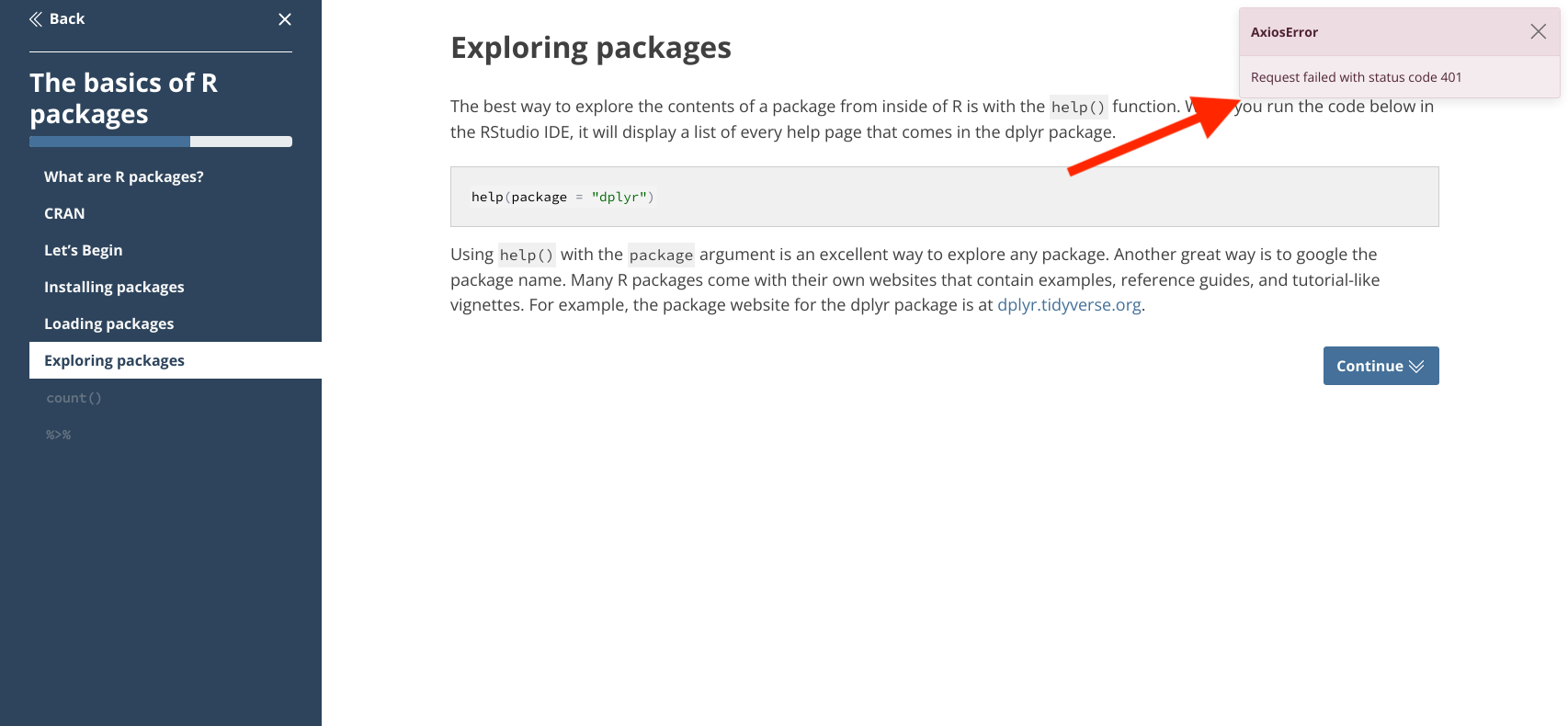
After you log into your Academy campsite, your login credentials will persist for 24 hours. After that 24 hour window, you will need to log in again.
Troubleshooting steps
- Refresh the page
- Log into Academy again if prompted to do so
- Click
Continueagain
AxiosError: timeout of 30000 ms exceeded
I see a timeout error when I try to run my code inside a tutorial code box.
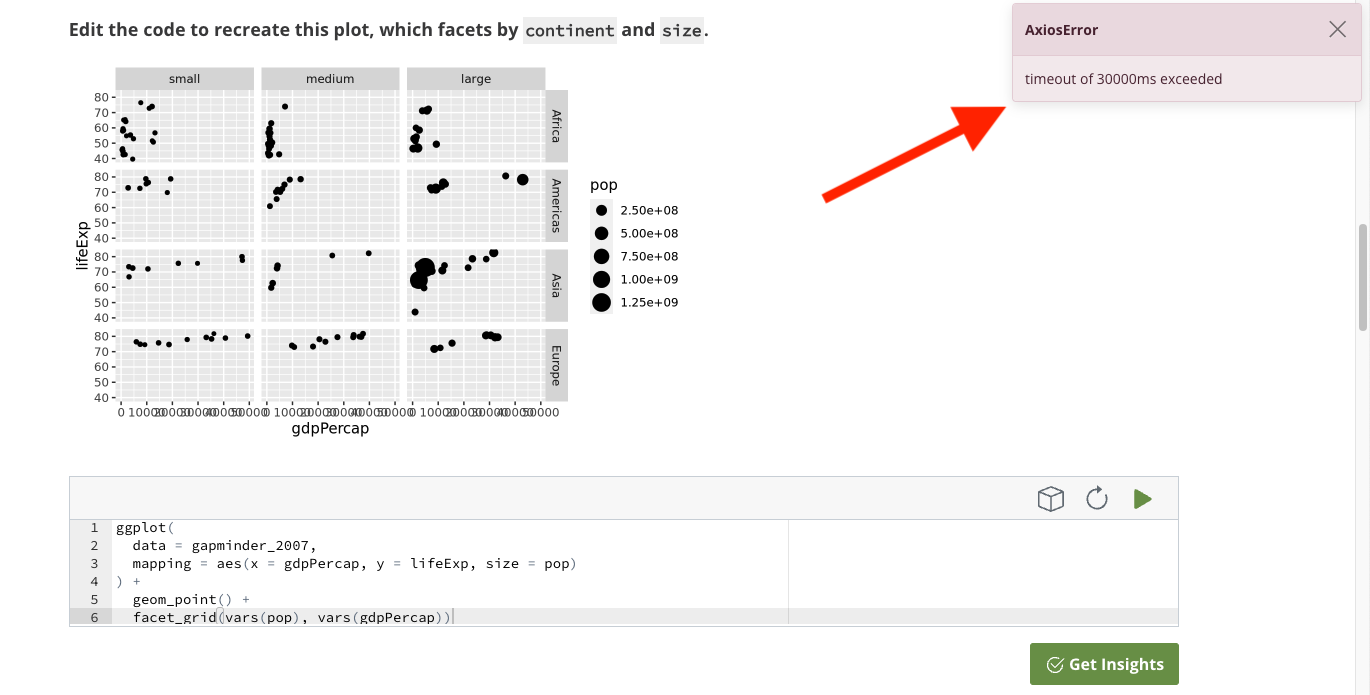
Timeout errors occur when R takes longer than expected to execute a bit of code. This can result from a slow internet connection; timeouts can also be caused by a computationally intensive operation or mistakes in your code.
Troubleshooting steps
- Check your internet speed (one speed test option: Cloudflare). If your internet connection is slow, try switching to a different network and running the code again.
- Revisit your code for scope. Are you running a computationally intensive operation? (For example, are you plotting many smooth lines or facets in a single graph?) Take a close look at your code and make sure that you are not asking R to do too much at once.
- Revisit your code for errors. Mis-specified parameters can cause R to hang in processing, so take a minute to double-check your code. Are you using the correct data set and variable names? Any typos?
AxiosError: Request failed with status code 500
When I try to run code in a tutorial code box, I see the above error message and am not able to run any code.
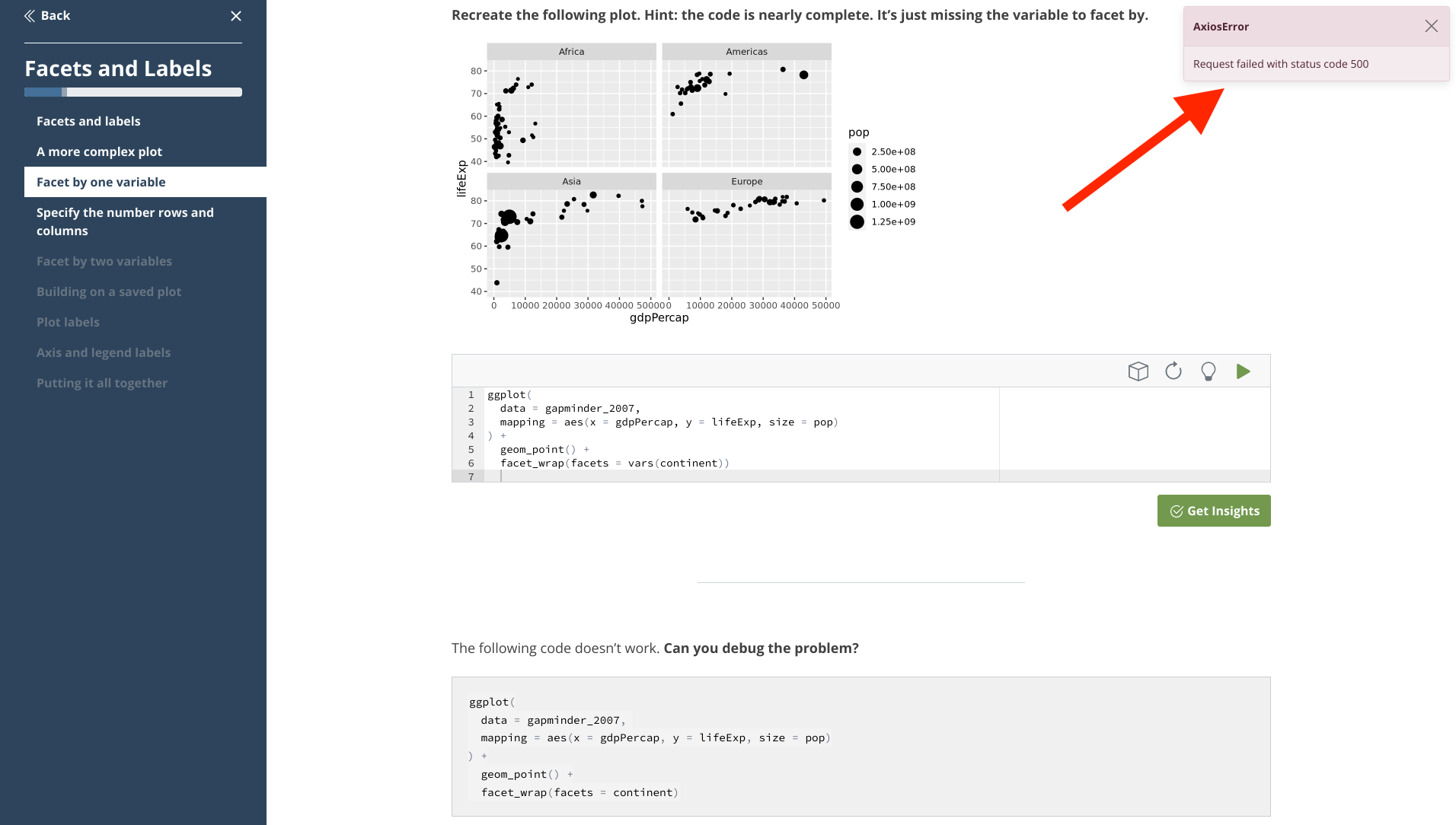
Very rarely, the Academy servers experience temporary outages. If you see this error message, it is possible that a server is down.
Troubleshooting steps
- Alert our team using the
Report an issuebutton in the lower right corner of your screen; to communicate urgency, please click the box that says"I'm stuck because of this issue".). - Academy staff will follow up when the issue is resolved.
R is taking longer to start than usual
When I click into a project milestone, the RStudio IDE will not load.
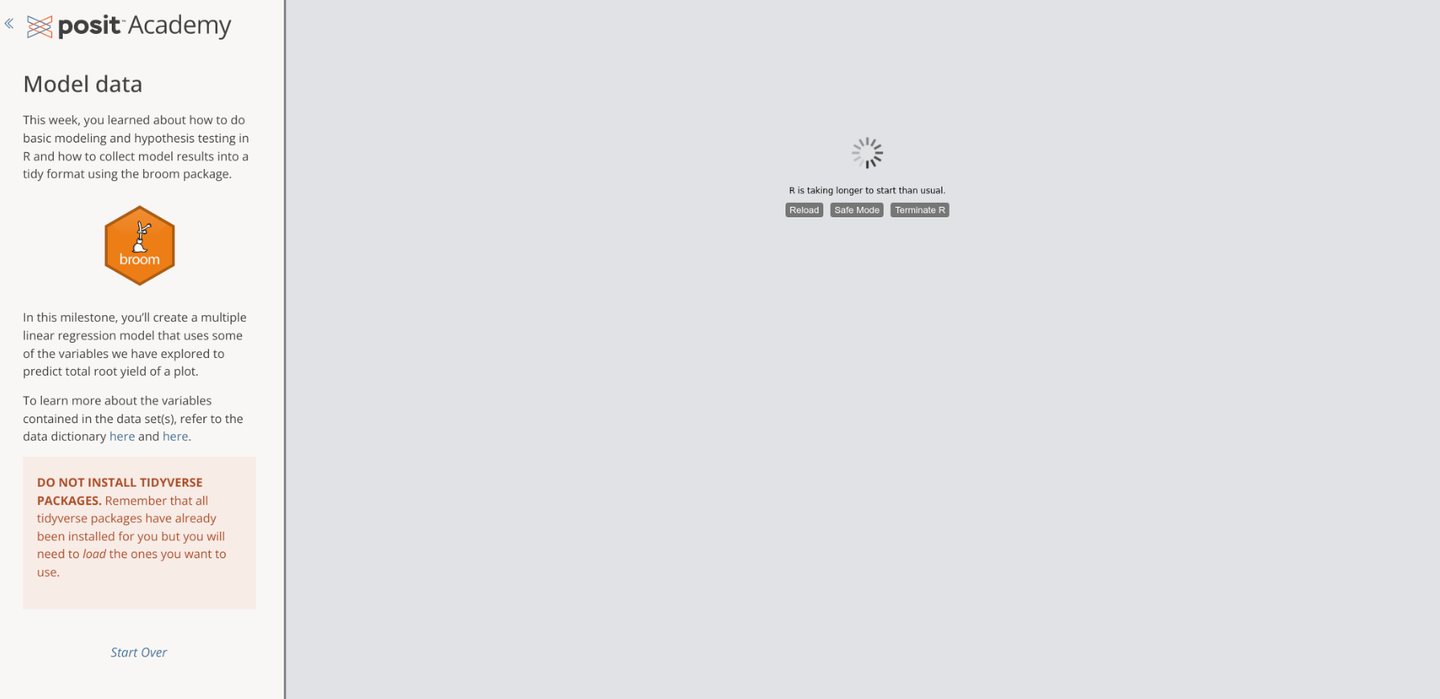
Opening a project milestone on your Academy campsite opens (or re-opens) the RStudio IDE, which should appear on the right-hand side of your screen. If the IDE fails to load, follow the steps below.
Troubleshooting steps
- Click
Terminate R(the third button on the right, mid-screen) - Refresh your browser window
- Log out of your Academy campsite and log back in
Failed to reserve virtual memory for process-wide V8 pointer compression cage
When I try to publish a Quarto document to Posit Connect, I see a message about a memory error.
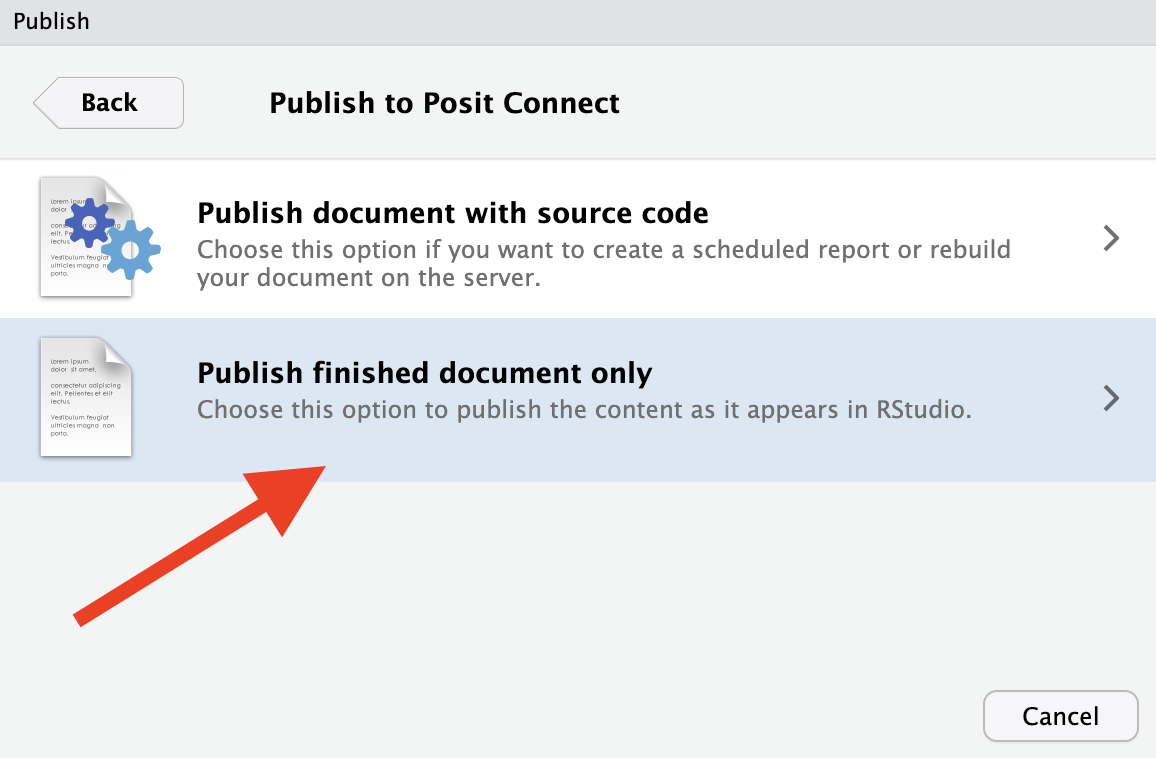
When publishing to Connect, you may encounter a limitation with the amount of memory available to the R process. This can happen with a large data set or a series of computationally intensive operations. Rather than publish your document with your source code and data set(s), you can publish the finished document only, which takes less memory.
Troubleshooting steps
- Re-start the process to publish your document to Connect.
- Once you reach the step pictured below, select
Publish finished document onlyand try again.
The IDE is focused on the wrong file. Please navigate to the document with ID “XYZ”
When working in a sidebar tutorial alongside a Quarto document in my IDE, I click Add Next Portion to add another section to my Quarto document and I see an error message.
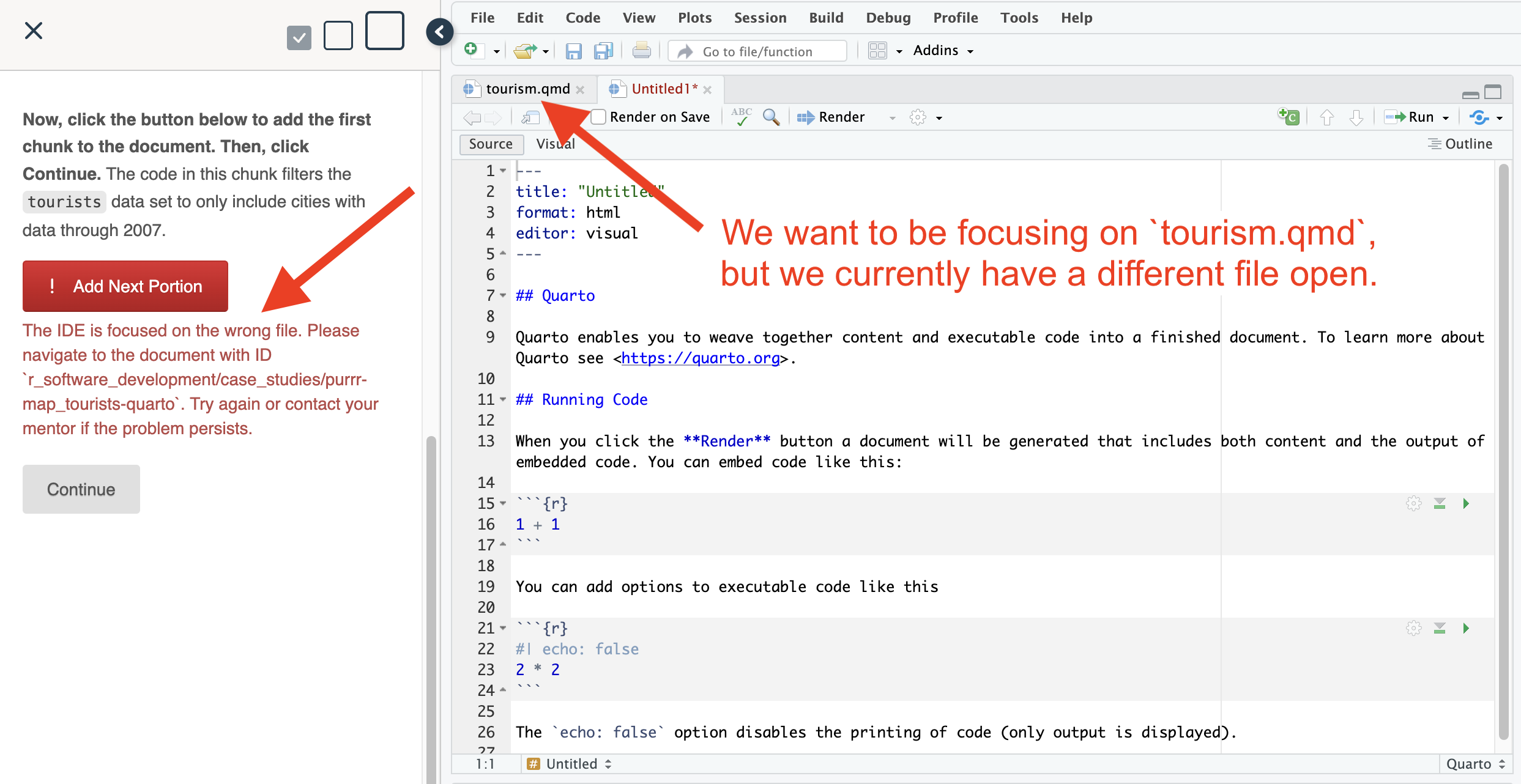
The system is not seeing the Quarto file it expects. Two likely causes: either (1) you missed a section earlier in the tutorial that presents a button for you to click to create a Quarto file or (2) you switched to a different active file in your IDE. (It is also possible that you edited your YAML header, which has confused the system.)
Troubleshooting steps
- Confirm that you have created the Quarto file that the tutorial is asking you to navigate to. If you have not, or you are not sure, return to the previous section of the tutorial and click the
Create filebutton. - If you have opened a different file in your IDE, close that file and navigate to the file that the tutorial is asking you to navigate to.
- Check that you have not edited the YAML header of your Quarto file. If you have, revert your changes to the YAML header.
[data file] does not exist in current working directory
When working in a sidebar tutorial alongside a Quarto document in my IDE, I try to import a data file and see an error message that the data file does not exist.
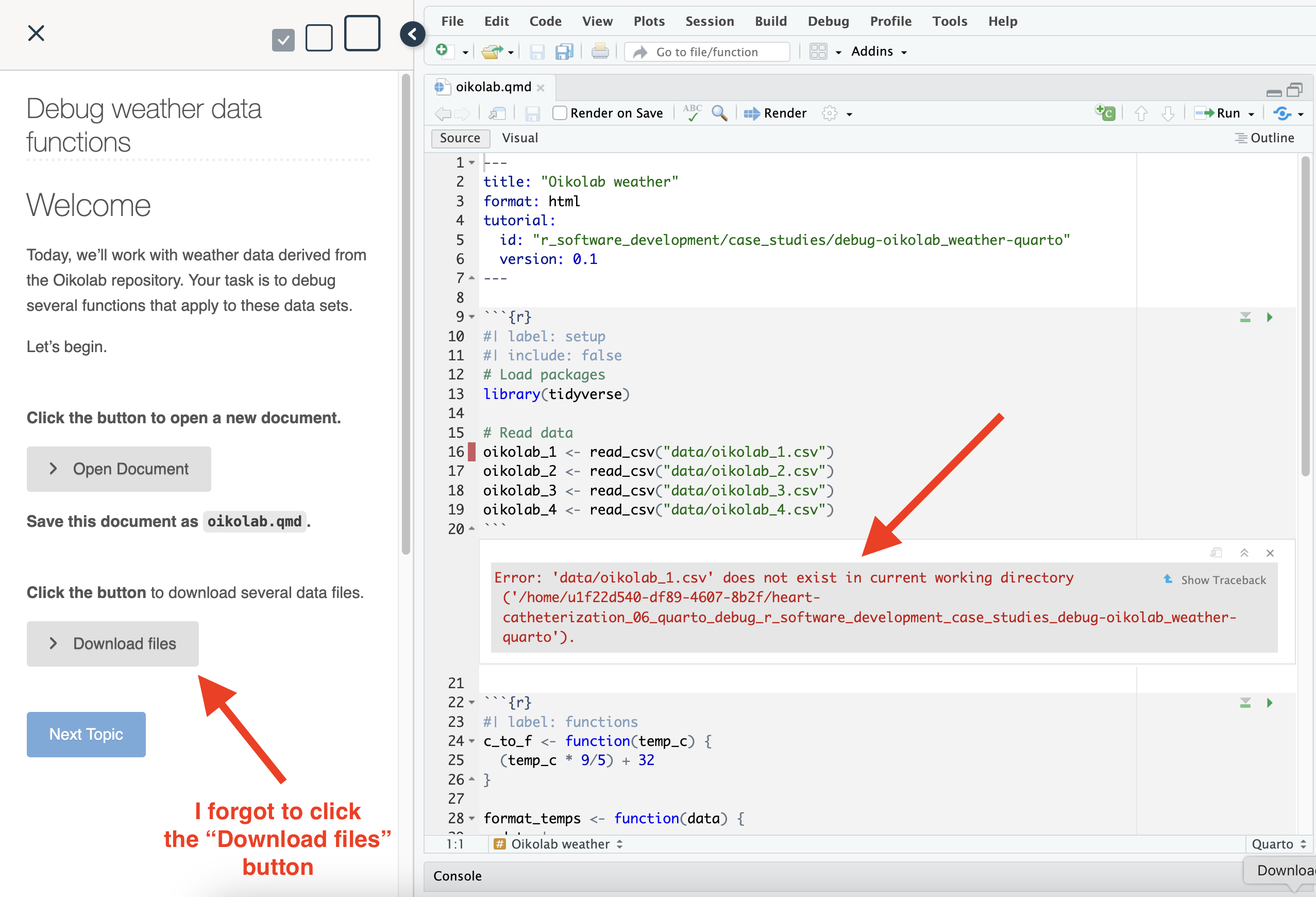
You may have missed a section earlier in the tutorial that presents a button for you to click to create the needed data file(s) or the system is confused about file paths.
Troubleshooting steps
- Confirm that there is a data subfolder in your working directory containing the necessary data file(s). If not, scroll up in the tutorial to find the
Download file(s)button and click it. - If the data file exists in the correct location, confirm that your working directory is pointed at that folder.
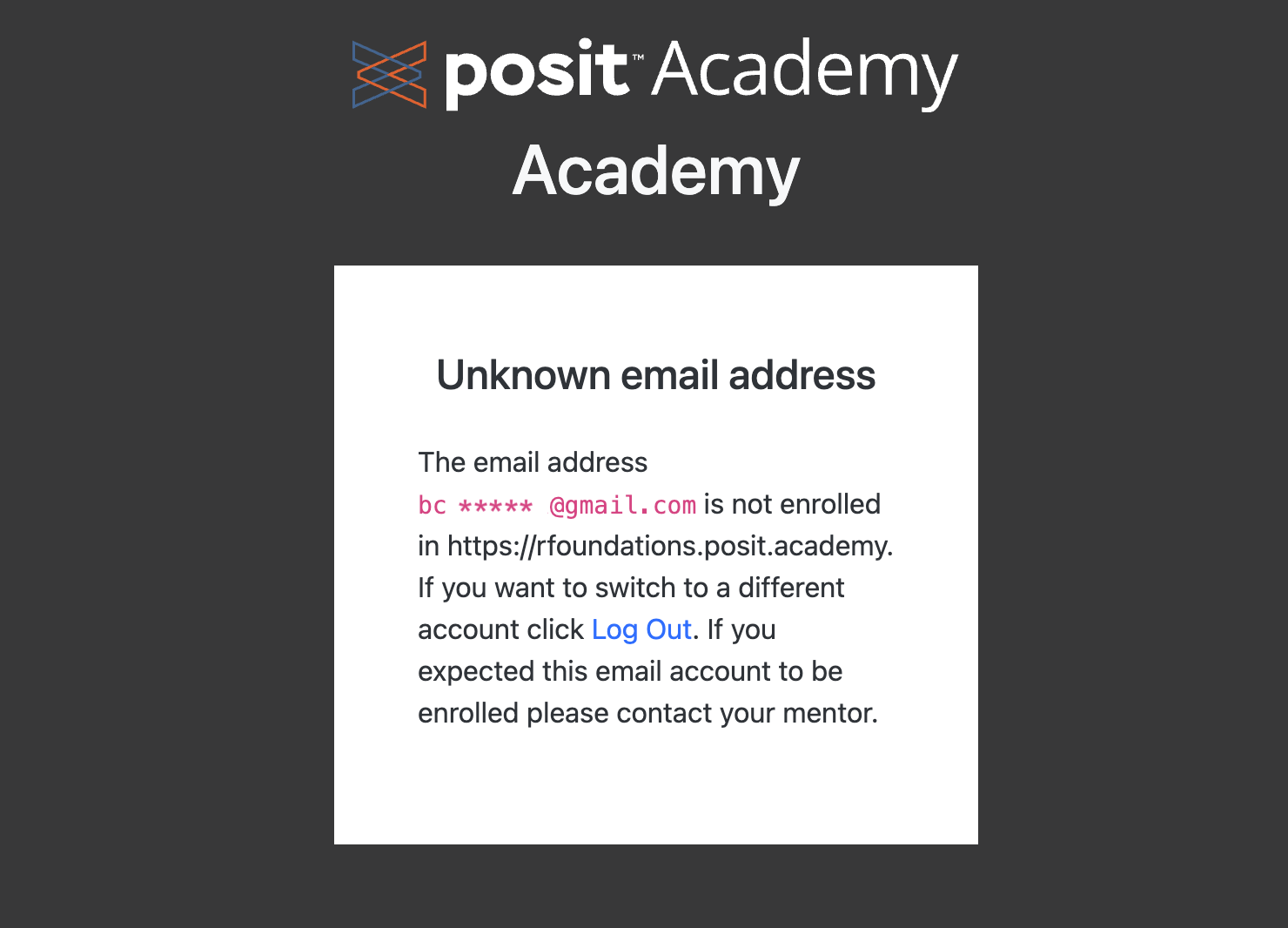
The email address XYZ is not enrolled
When I try to log into my Academy campsite, I see an error message that says my email is not enrolled.
Troubleshooting steps
Log into https://login.posit.cloud/identity/authentication to check the email that you used when creating your free Posit Cloud account.
Verify that the email is the one you expect to be associated with your Academy login (likely your work email address) – if not, update it to your correct email address.
Refresh your browser, and try logging into your Academy campsite again. If you are still unable to log in, contact your mentor.
Lost milestone work
I started to work on a project milestone but something went wrong and I lost my progress.
Sometimes the RStudio IDE can crash unexpectedly while you’re working on a milestone. This might happen because of an issue with the Academy server, or if you switch away from the IDE to a different window without first saving your work.
To recover any work that wasn’t saved, you can use the rsrecovr package, which recovers unsaved files from RStudio sessions.
Troubleshooting steps
Open the project milestone where you lost your work.
Run
remotes::install_github("jmcphers/rsrecovr")in your Console to install the rsrecovr package. If you are asked to update other R packages in the process, select “All”.Run
rsrecovr::recovr()in your Console to recover your unsaved files. This will create a new folder in your working directory with the prefixrecovered_*that will contain any unsaved files from your previous session.
Firewall issues
I cannot access my Academy campsite, and my error is not represented above. Alternately, I can access the campsite, but content on my Academy campsite does not load as expected.
A network firewall may be blocking your access to the site. This can happen if you are trying to access your Academy campsite while working in an environment with strict security settings.
Troubleshooting steps
- Test your access by visiting app.posit.academy/diagnostic.
- You should see 4 green check marks:
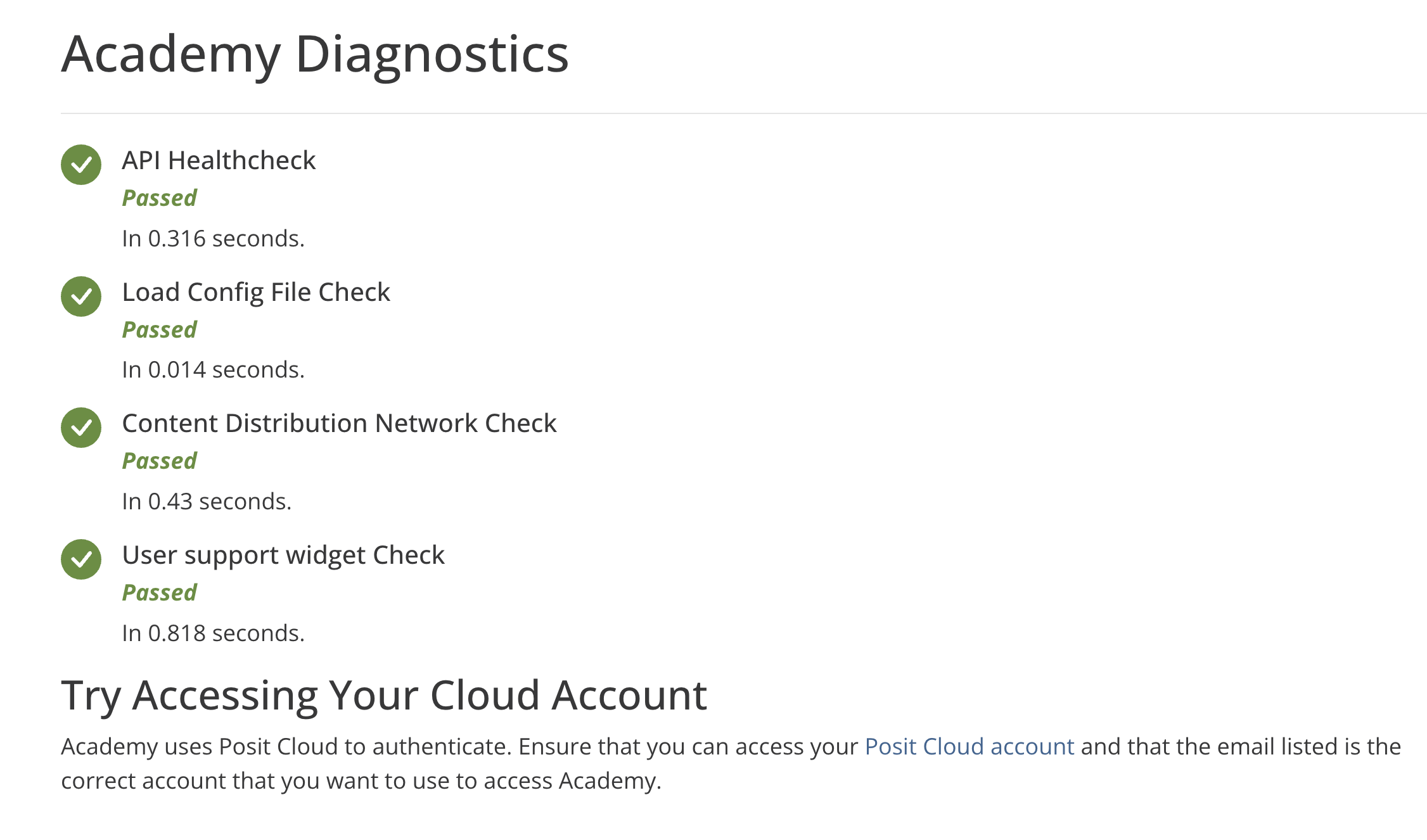
- If you see any red Xs, you may have a firewall issue. Ask your IT department to whitelist the following domains:
*.posit.academy
rsacdn.link/*
login.posit.cloud
widget.usersnap.com
resources.usersnap.com/
*rstudio.wistia.com/*- If your IT department has any questions or concerns, we can arrange a meeting with the Academy engineering team. Contact your mentor and we’ll take it from there.
Can’t access Slack
I cannot log into my Academy Slack channel in the Posit Slack workspace.
If you were expecting an invitation to join an Academy Slack channel but haven’t seen the email, check your spam folder. If you still don’t see it there, contact your mentor.
If you were previously able to log into your Slack channel but are now having trouble doing so, the quickest way to resolve the issue is to reset your password.
Troubleshooting steps
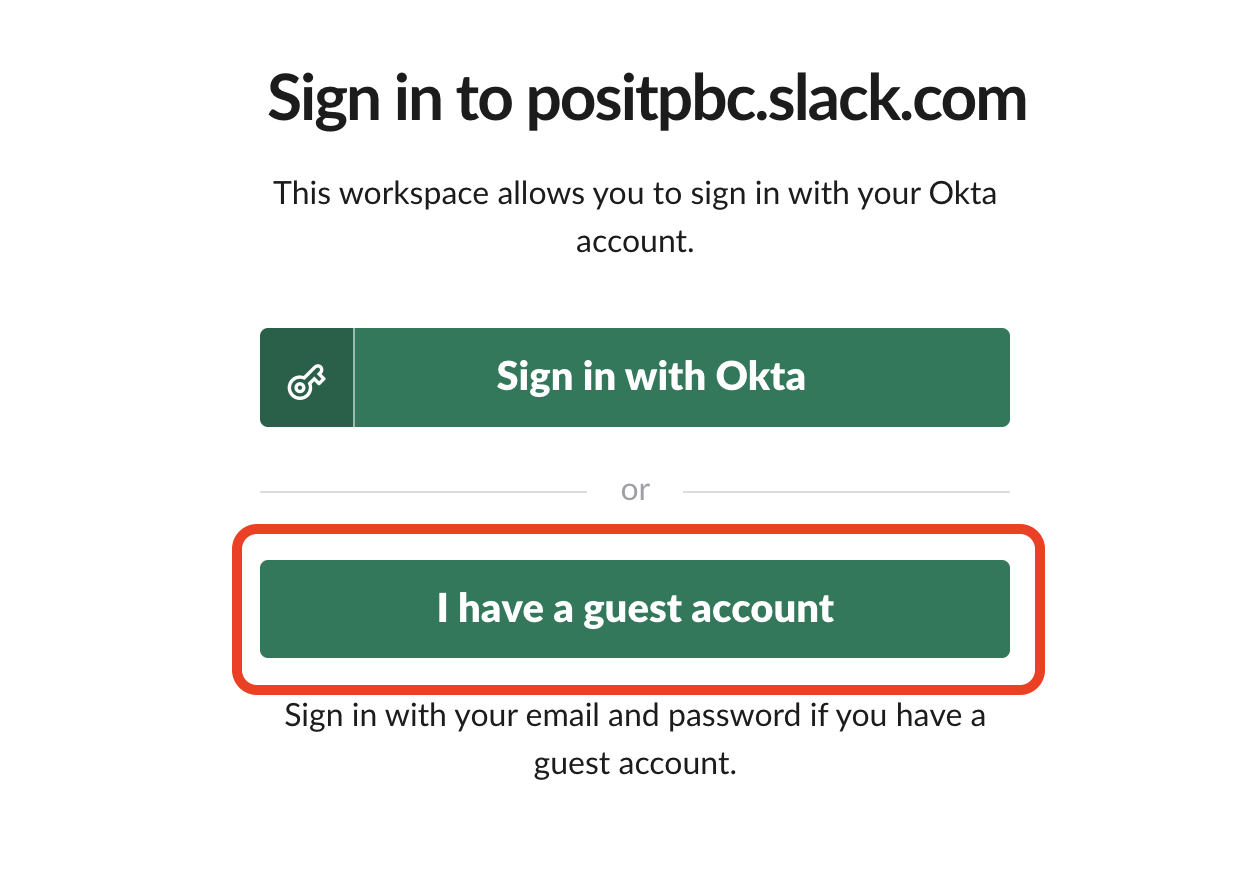
Go to positpbc.slack.com in your browser.
Select “I have a guest account”
- Select the “Forgot Password?” link.
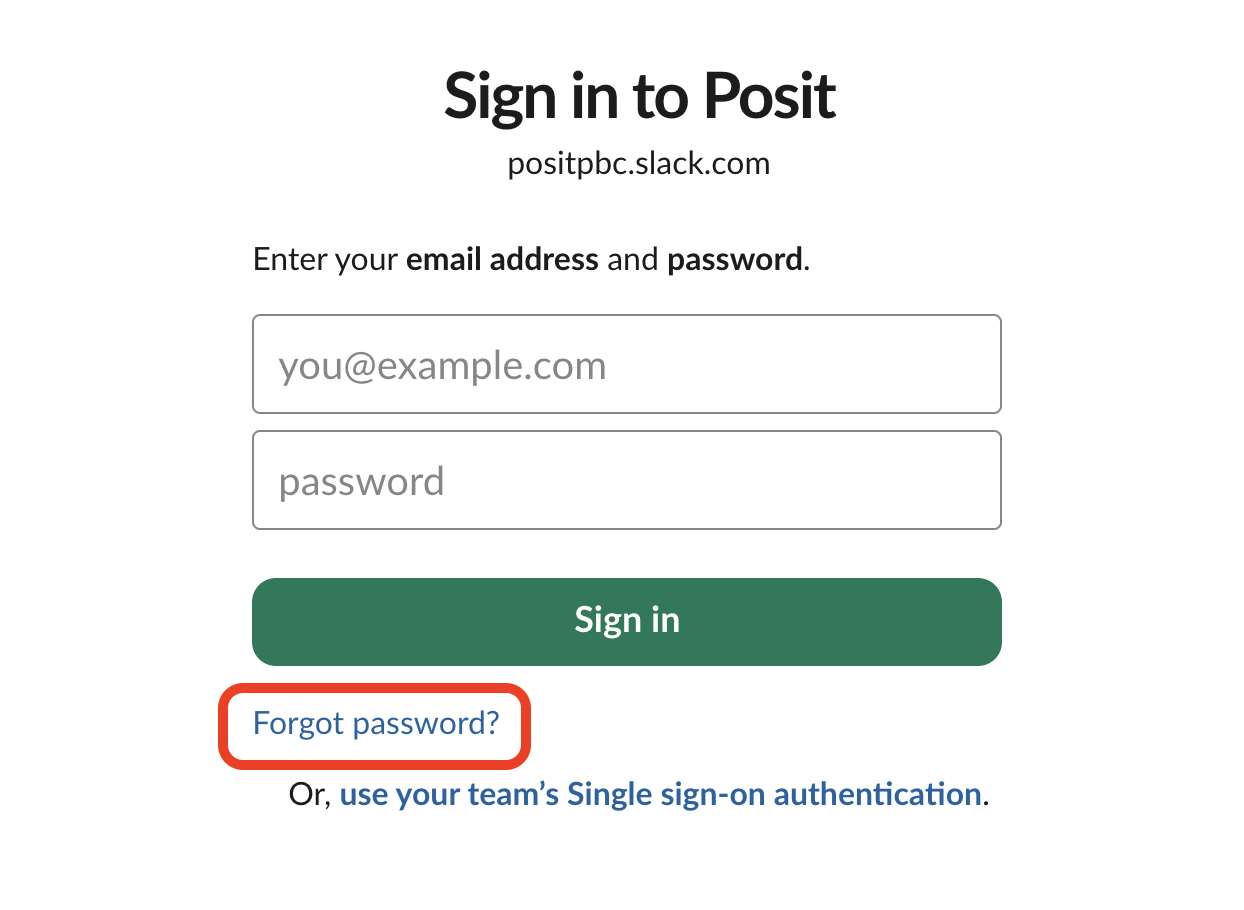
- Enter the email you use to access the Academy campsite. You will receive an email with a link to reset your password.